

How to Show "Only X Left" Messages on Your Shopify Product Pages
Most Shopify stores focus almost entirely on getting shoppers to the product page. That part gets a lot of attention — ads, SEO, social. What happens on the product page gets less thought.
But the product page is where decisions are made. A shopper can want something, find it, look at it, and still leave without buying. Sometimes the reason is price. Sometimes it's uncertainty about the product. But often it's simply a lack of urgency — they think they can come back later, so they don't act now.
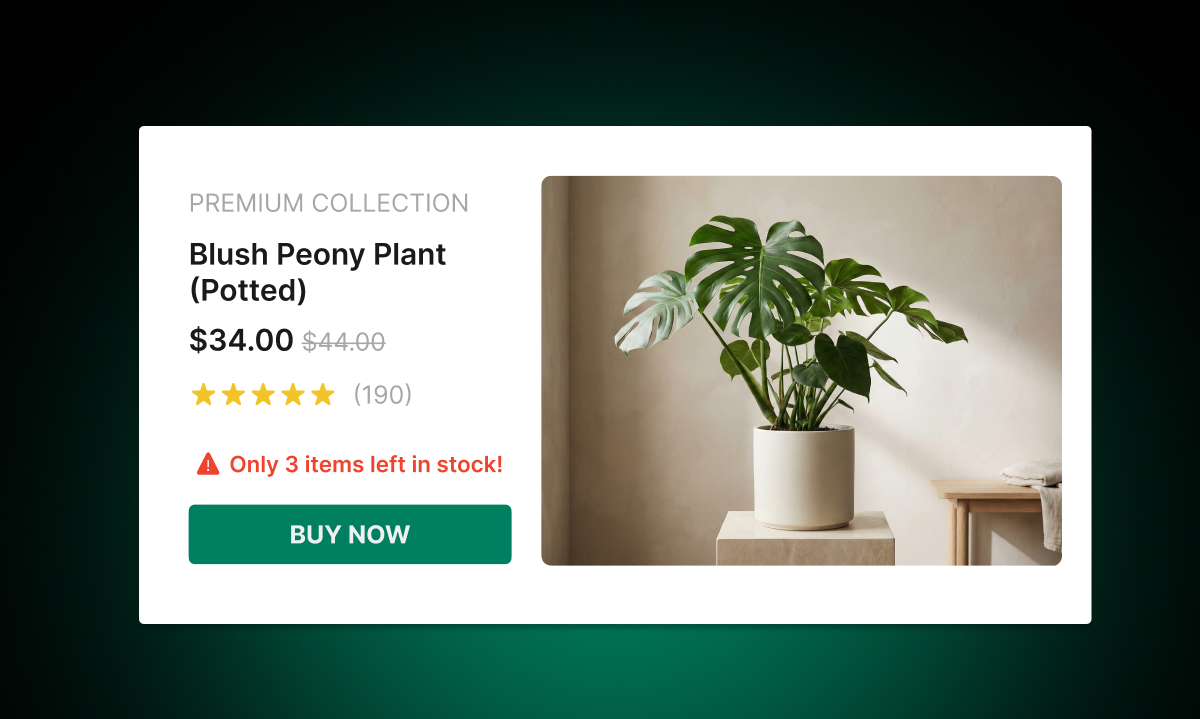
Low stock messages fix that. A simple notice that says "Only 4 left in stock" changes the calculation. It makes the cost of waiting real. And unlike fake countdown timers, it's completely honest — it reflects what's actually in your inventory.
This post covers what low stock messages are, why they work, how to set them up, and how to get the most out of them.
What Is a Low Stock Message?
A low stock message is a short notice that appears on your product page — usually near the Add to Cart button — when inventory drops below a threshold you define. Something like "Only 3 left!" or "Hurry — only 2 remaining."
The message is real-time. It pulls from your actual Shopify inventory count. When stock is plentiful, the message doesn't appear. When it drops below your threshold, it shows automatically. There's no manual work involved once it's set up.
With Remind Notification, low stock messages are built in. You choose the threshold and the wording, and the app handles the rest.
Why Low Stock Messages Work
The psychology behind this is well-established. When people believe something is scarce, they value it more. When they think they can get it any time, they wait — and often forget or get distracted.
A low stock message does two things at once. First, it signals demand. If only a few items are left, other people must have bought them. That's social proof without needing a review. Second, it creates a concrete reason to act now rather than later. "I'll buy it this weekend" becomes a riskier decision when there are only two left.
The key is that this only works when it's real. If you show "Only 2 left!" on every product all the time, shoppers will catch on and the message loses its effect. Used accurately, it's one of the most credible urgency signals you can put on a product page.
If you want to go deeper on urgency tactics more broadly, the post on how to design a Shopify product page that converts first-time visitors covers where low stock messages fit alongside other product page elements.
How to Enable Low Stock Messages in Remind Notification
Setting this up takes a few minutes.
Step 1: Enable the feature
Open the Remind Notification app from your Shopify admin. On the dashboard, find the Low Stock Messages section and click Enable. The message will start showing on your product pages immediately, using a default threshold of 3 items.
Step 2: Set your threshold
The default is 3, but you should set this based on what makes sense for your products. To change it, go to Low Stock → Settings, enter your minimum stock count, and click Save.
For example, if you set the threshold to 5, the message will appear on any product where inventory is 5 or fewer. Once stock goes back above 5, the message disappears automatically.
Think about your typical restock cycle and how fast your products sell. A threshold of 3 might be right for a slow-moving product but too low for a bestseller that sells 20 units a day. Pick a number that reflects genuine scarcity for your specific store.
Step 3: Customize the message
You can edit the message text in the app's customization settings. The default language is fine to start with, but matching the wording to your brand voice helps. A lifestyle brand might use "Almost gone — only 3 left." A more direct store might use "Only 3 remaining."
You can also customize the style of the message — color, font, and placement — so it looks like a natural part of your product page rather than an add-on.
Where the Message Appears
By default, low stock messages appear on product pages. In Remind Notification, they appear near the Add to Cart button, which is exactly where they need to be. A low stock notice buried at the bottom of the page doesn't drive urgency. It needs to be in the shopper's peripheral vision while they're deciding.
The message can also appear on collection pages. This is worth enabling. When a shopper is browsing a collection and sees "Only 2 left" next to a product, it can pull them into the product page to act. Think of it as urgency at the browsing stage, before they even click through.
Pairing Low Stock Messages With "Notify Me" for Out-of-Stock Products
Low stock messages work on products that are almost out of stock. But what happens when a product actually runs out?
This is where the combination becomes powerful. When stock hits zero, the low stock message is replaced by the "Notify Me When Available" button. Shoppers who missed the window can sign up for an alert. When you restock, they get an automatic notification.
So the flow looks like this: a shopper sees "Only 2 left" and either buys immediately or doesn't. If they don't, the product sells out. They come back later, see the Notify Me button, sign up, and get an email when it's back. That's a shopper you could have lost at two different moments who is still in your funnel.
For products with variants, this works at the variant level. If size M sells out but sizes S and L are still available, the Notify Me button only appears for size M. Other sizes still show the normal Add to Cart button — or a low stock warning if they're also running low. You can read more about how this works in the post on setting up back-in-stock alerts for products with multiple variants.
Setting the Right Threshold for Different Product Types
Not all products behave the same way. A product you sell 2 units of per month is meaningfully scarce when you have 3 left. A product you sell 50 units of per day isn't.
Here are a few ways to think about this:
For slow-moving products: Set a lower threshold, like 2 or 3. These products don't sell quickly, so only showing the message when truly close to zero makes sense.
For bestsellers: A higher threshold might work better, like 10 or 15. If you sell 20 units a day, having 10 left in stock really is low. Shoppers who come in the morning might find it gone by evening.
For seasonal products: Adjust your threshold as peak season approaches. If you know a product tends to sell out in the week before a holiday, set a higher threshold in advance so shoppers see the warning while there's still time to act.
Remind Notification applies the threshold you set globally. If you need different thresholds for different products, you can use this as a starting point and revisit the setting when you're managing seasonal demand.
What to Expect After You Turn It On
The impact of low stock messages is easiest to spot on your bestselling products. These are the ones where shoppers are already on the fence — they like the product, they're comparing it to others, they're not sure if they need it right now. A low stock message tips that calculation.
You're not tricking anyone. You're giving them accurate information about availability. That's genuinely helpful. Shoppers who want something and would have been disappointed to find it sold out the next day will thank you for the heads-up.
Once it's set up, the system runs on its own. Stock changes, messages appear and disappear, and you can focus on restocking rather than managing urgency messaging manually.